Stylesheets are used to control the appearance of HTML pages, can also be used to allow you to change the appearance of a page when it is printed.

Why is this useful?  If, for example, you have a navigation panel on the left hand side of your page, you can hide this panel when you print, so the printout contains the useful information only and takes advantage of the full page width, which generally means it can be printed on fewer pages.

Normally stylesheets are used within a HTML page as follows:

  <link type='text/css' rel='Stylesheet' href='/page/20/sytles.css'>

To use different stylesheets for the screen and printer, you use the media attribute as follows:

  <link type='text/css' rel='Stylesheet' media='screen' href='/page/20/screen.css'>
  <link type='text/css' rel='Stylesheet' media='print' href='/page/20/printer.css'>

In this case, you would need to duplicate all the common styles in both files, so if there are a lot of common styles, you may want to have smaller stylesheets which just contain those styles which you want to be different on the screen to how they appear on the printer.  So, a better strategy would be:

  <link type='text/css' rel='Stylesheet' href='/page/20/common.css'>
  <link type='text/css' rel='Stylesheet' media='screen' href='/page/20/screen.css'>
  <link type='text/css' rel='Stylesheet' media='print' href='/page/20/printer.css'>

The  different media types include handheld, projection, braille, and more, so you if your web pages appear in different devices, you can customize the appearance to better suite the device.
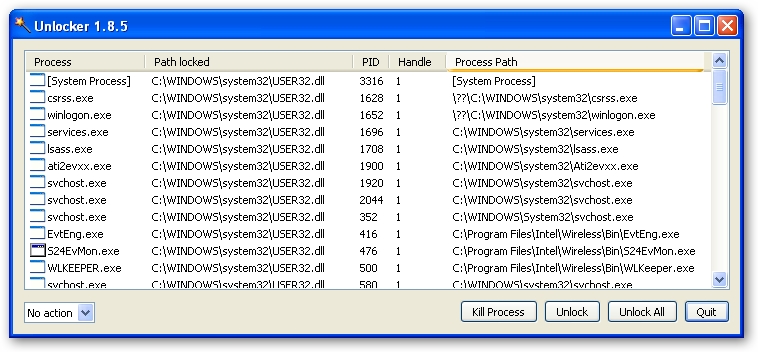

Cedrick Collomb has a handy utility called Unlocker which will tell you which processes are preventing you from deleting a file or folder.

If a delete fails, you get the generic access denied error message from Windows; however, if you have Unlocker installed, then it will popup and display the processes which have a lock on the file or folder.

For example, attempting to delete C:\Windows\System32\user32.dll (yes this would be a dumb thing to do) will display the following list of processes (which will be almost everything running on Windows):

Unlocker displaying list of processes which have a lock on C:WindowsSystem32user32.dll

Unlocker allows you to force the file to be unlocked, or even kill the processes; however, I prefer to find out which processes are preventing the deletion and closing them myself.

One common issue, is that you have an editor active, but no files currently being edited, and you can’t delete the folder which contained files you just recently edited.  The editor’s current directory is the one you want to delete, so Unlocker will show the editor process in its list.  So you know to exit the editor so you can delete the folder.  An alternative is to open a file from a different folder within the editor, so the current directory changes to something other than the folder you want to delete (or ones of its children).

You can run Unlocker on a file before you attempt to delete it.

It would be nice to have a Close button within Unlocker, which would politely ask the application to close, much the same way you would select Close from the system menu when you right click on the system tray’s entry for the application.

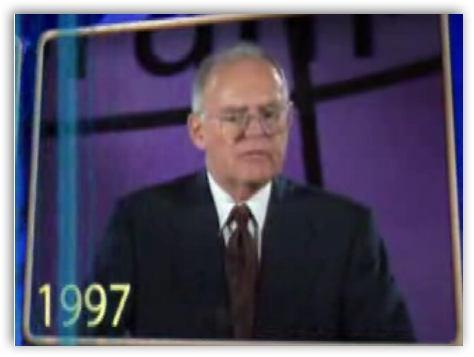
Intel co-founder, Gordon Moore says “It’s not the end of the road,” when it comes to Moore’s Law.

From the BBC Watch: (approx. 1 min 50 sec)

/page/20/moore.jpg

From the Intel Developers Forum 2007, take a look at the last ten years of silicon chips: (approx 4 min 30 secs):

/page/20/moore1997.jpg

Lid pointed me to an article by Mark Pilgrim, the author of GreaseMonkey Hacks for Firefox, about forcing Firefox to use https, so that you know that your email is secure from any person of ill intent who wants to read your email by monitoring the data being exchange between your machine and Google.

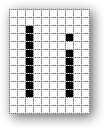
It got me thinking that although this is technically pretty cool in that you can load scripts which can redirect http://mail.google.com to https://mail.google.com automatically, this does raise the possibility of another script being loaded, unbeknowist to you, which changes say https://www.wellsfargo.com to say https://www.weiisforgo.com (they look more similar within the address field of both IE and Firefox with 2 pixels of black being the difference between ‘l’ and ‘i’) and then getting your login details.

difference between l and i

Now Google allows you to access your mail via https, but you need to initiate this by going to https://mail.google.com instead of http://mail.google.com, so if you bookmark the https version, they you are good to go in either Firefox or IE.

It would be nice if Google allowed you to force access via https as one of the gmail account preferences, so if you mistakenly access your mail via http it will warn you.

I didn’t try Yahoo, but Microsoft don’t allow https access to hotmail, or at least provide the hassle free option that Google does, maybe if you throw $’s Microsoft’s way.

Note to Google, why can’t http://www.google.com/mail/help/images/mvideo_thumb.jpg be accessed via https so that IE does not complain about secure and non-secure items being on the same page when you logout (yes you can set “Display mixed content” to prevent this).  Logging in does the same, but I can’t quite figure out the item being referenced via http.  If only Google didn’t obfuscate their pages, then we could easily look, um steal :-) [happy 25th smiley].

If you want statistical information about your blog, for a period earlier than WordPress provide under “Blog Stats” all you need to do is add “&enddate=07-06-01”  [year, month, day] (without quotation marks) to the URL.  This only works on the “Top Posts” page.

Although WordPress.com offers statistics to bloggers on their “Blog Stats” page, mostly you are only offered information for the past week.  The one aberration is the “Top Posts” page that shows stats for the previous 30 days. 

It is here that you can manipulate the URL to access data for an earlier period of time.

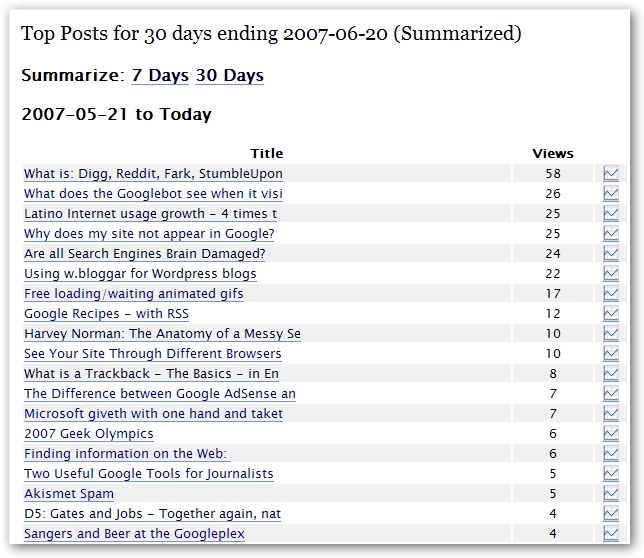
If I go click on the “Top Posts” link on my “Blog Stats” page, and view the summary for the past 30 days, I get this information:

/page/20/toppostsjune.jpg 

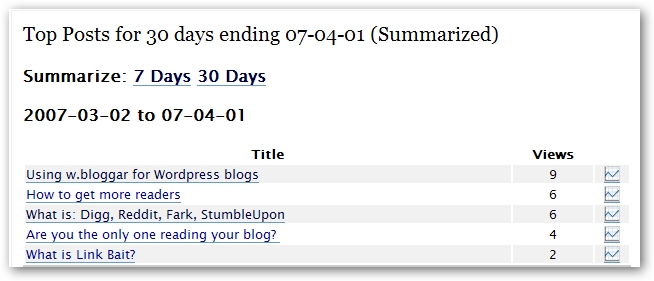
However, if I want to look at my top posts, and how many times they were accessed for the 30 days preceding April 1, 2007, I type “&enddate=07-04-01” (without the quotation marks) at the end of the URL – and – voila!

/page/20/apriltopposts.jpg

If you are interested, WordPress.com has more information about statistics in their FAQ’s:

FAQ’s about stats on WordPress

Info on plugins at the WordPress Codex

« Previous PageNext Page »