
Step 1: Open a WordPress.com account

Go to http://www.wordpress.com

Click on “Start your free WordPress Blog”
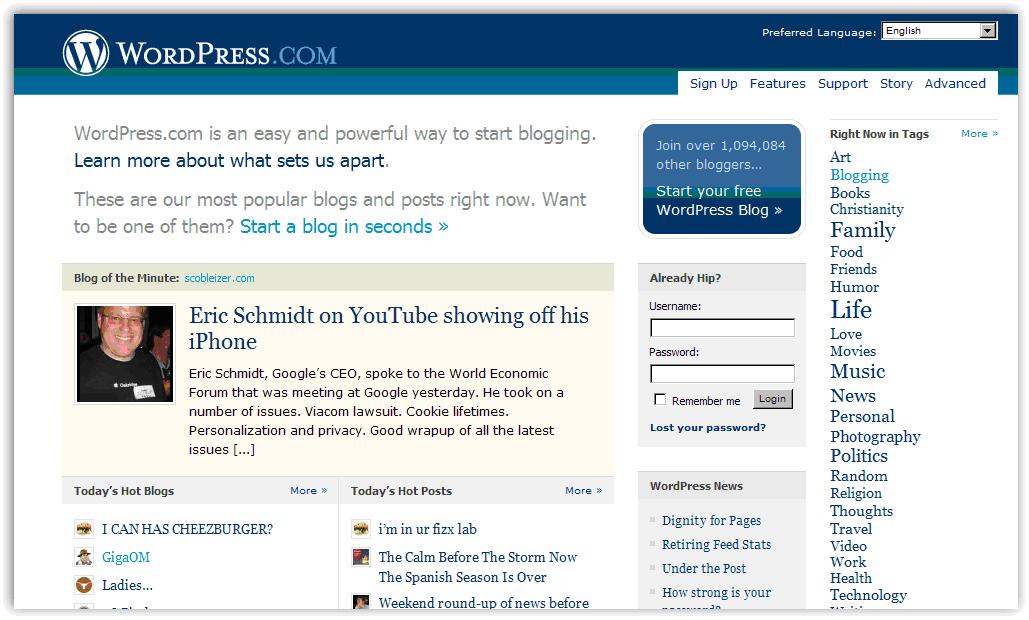
Open WordPress Account
Fig 1: WordPress home page

Step 2: Setting up your WordPress Account
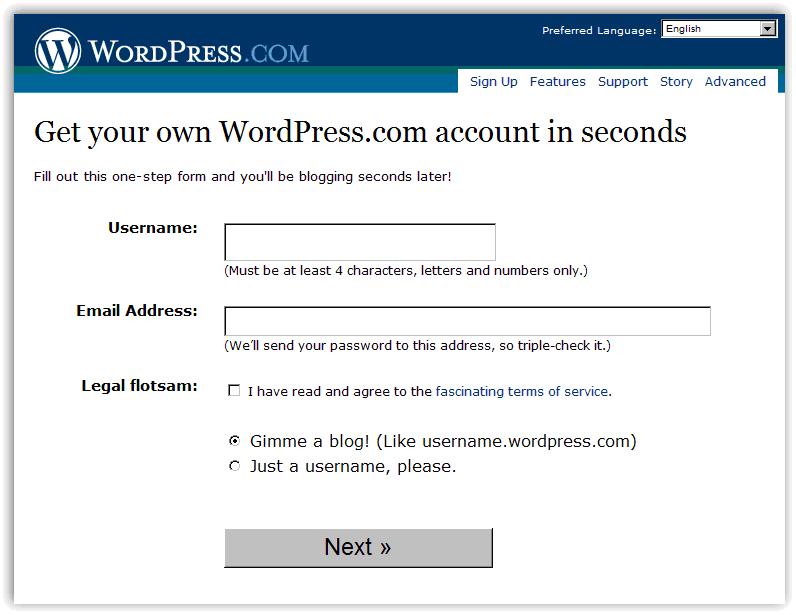
Username
Fig. 2 Get a WordPress.com account: Get a site or just an account

To set up a WordPress account, you will need to:

a. Decide on a username

Choose your username wisely, as it will be reflected in your URL, and cannot be changed.

For instance, if you choose the username “Lidija Davis” your Web site/blog address will be http://lidijadavis.wordpress.com

When deciding which name to use, choose the name that best reflects what you will be doing. If you are going to build a Web site about rollerblading, the username “rollerblading101″ is an option, if you are building a Web site for your classroom, a username that includes the name of the school or initials, your name, your class, or a mixture of these would be good. For instance, for the Coatesville Primary School music class – “CPSmusic” or “CPSroom7” or “coatesvillemusic” are all good names. “Supercoolmusicteacher” is another option, but be prepared for everyone to see it.

b. Type in your e-mail address

c. Agree to the Terms of Service:

The gist:

The folks at Automattic run a service called WordPress.com and would love for you to use it. The basic service is free, and they offer paid upgrades for advanced features such as domain hosting and extra storage. The service is designed to give you as much control and ownership over what goes on your blog as possible, and encourage you to express yourself freely. However, be responsible in what you blog. In particular, make sure that none of the prohibited items listed below appear on your blog or get linked to from your blog (things like spam, viruses, hate content, etc). Please make sure you read through the list and the rest of the terms and agree with them before you get started.

For the full text, go to http://wordpress.com/tos/.

d. Blog or account only?

If you want to start a site, click “Gimme a blog!” – if you just want a username (needed to view password protected WordPress sites), choose “just a username”

Step 3: Determining the basics
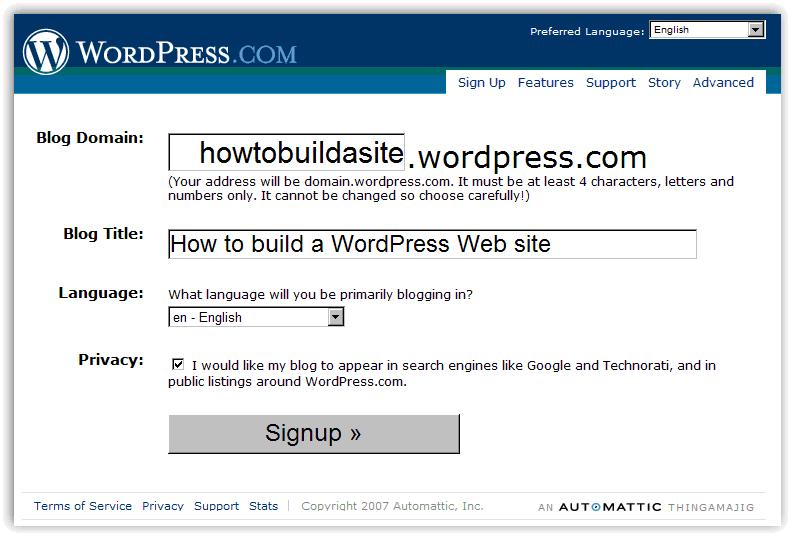
Domain and Title
Fig. 3 Basic details

a. Domain

This page shows you what your URL will look like, and it is the last opportunity to change it; if you don’t like it, now’s the time. For this example, I’m using the username “howtobuildasite”

b. Choosing the Blog Title:

Your blog title can be easily changed, so if you get it wrong first time, don’t worry too much. Just make sure it fits in with what you are doing, or how you want to be known. For this example I am calling my new site How to build a site with WordPress.

c. Privacy:

By ticking the box beside “privacy” you are asking WordPress to ensure your site is seen by all of the search engines. If you wish to password protect your site, don’t tick this box (yes, it does sort of feel back to front).

d. Signup!

Step 4: Confirmation

Once you click on “sign up” you will see a page (fig 4) that informs you WordPress is sending a confirmation e-mail to your account. You can either wait for your e-mail or start adding information about yourself. This information can be changed once you access your site, so don’t worry too much if you don’t get it right.
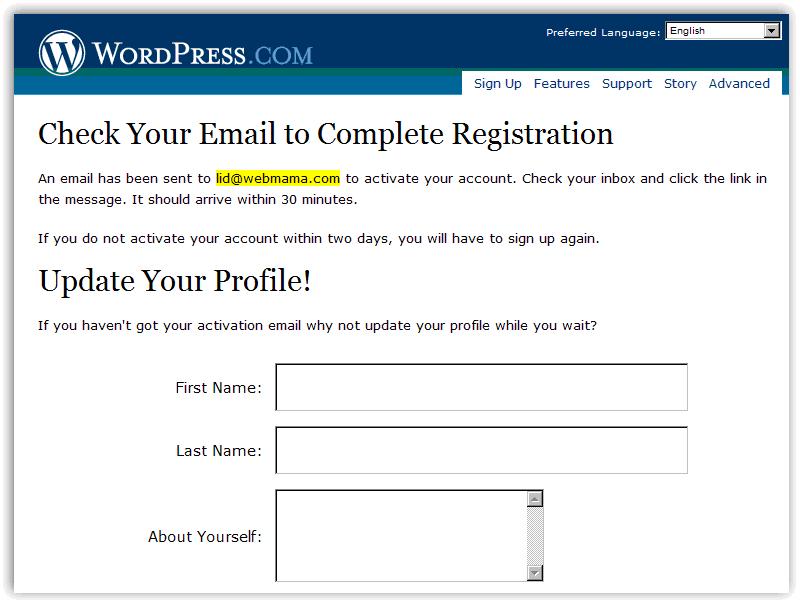
Check E-mail
Fig 4. WordPress sends e-mail to complete registration

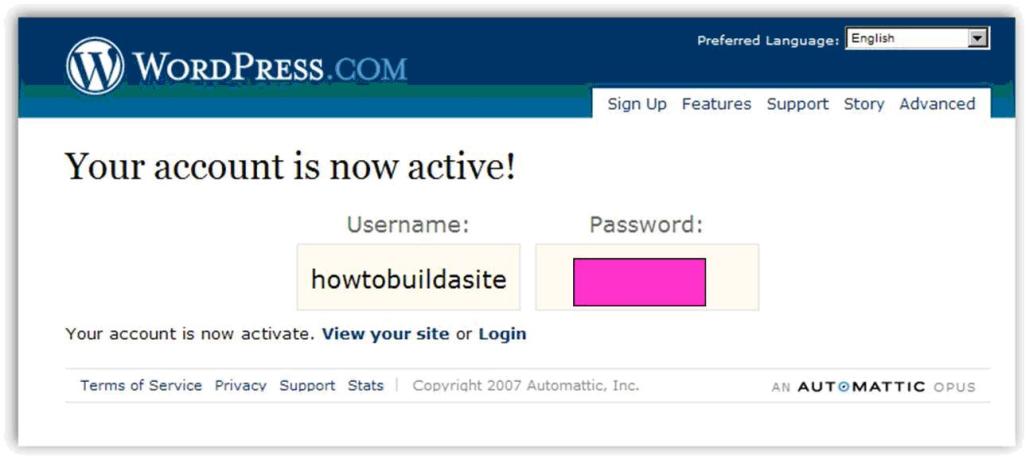
Once you receive the e-mail from WordPress, click on the link and your account will be activated (fig 5). The password will be generated for you, so write it down; you can easily change it later, from your dashboard (menu).
Account Active
Fig 5. Confirmation of account status

Voila!

WordPress is free software that allows anyone to be an online publisher. It comes with tons of options, all made to ensure your experience as a publisher on the Web is easy, fun, free of cost, and compliant to Web standards. You can choose to make it public or private.

Although most people use it to blog, WordPress has a distinct feature that is not available on every blogging platform – you can build an entire Web site using WordPress alone.

WordPress is open source, meaning the source code (the program instructions) is freely available to anyone interested in using it.

How to use WordPress?

For the tech inclined: WordPress.org

For those people who are comfortable with programming/html, and have their own server, you can download the software at http://wordpress.org/. You get to play with it, add to it, and modify it so it best suits what you need it to do, then host it yourself.

For the non techie: WordPress.com

For those who know little or no html, you can set up an account at http://wordpress.com/ and just start building a Web site or blog, without worrying about all the back end stuff; WordPress does it for you. It is easy to use, looks great, and gives you many options to customize it to your taste.

Why is WordPress better?

  • WordPress comes in two flavors: basic (.com) and advanced (.org)
  • WordPress software lets you build an entire Web site instead of a blog
  • WordPress places no advertising on your pages
  • The people that make WordPress, Automattic, also make the anti-spam software it uses, Akismet, so you have access to the most current and most researched product

NOTE: Do not confuse wordpress.org and wordpress.com – reading wordpress.org information when you are using wordpress.com for your site will just confuse you.

If you want more information; take a look at these:

New Here? Page at WordPress.com

WordPress.com FAQ’s

WordPress Guru Lorelle VanFossen

WordPress Lessons at WordPress.org

Somehow, for whatever reason, Windows decided to display files using the last modified date & time as the sorting order for the common open and save as dialogs.

Why?

Good question.

 I have been using Windows since the bad old days of Windows 2.0 (circa 1987) and for the life of me have never had this happen before knowingly or otherwise.  For a period of over a month this really really really annoyed me.

I tried searching but just couldn’t get the right results which showed a solution within the top 4 (yes I am lazy).

Anyways, recently I tried again and found the solution.

If the Ctrl key is pressed when an Explorer window is closed, Windows will save the sort order being used within the closing window and use this to sort the files when the open and save as dialogs are shown.

Thanks to Susan Daffron’s Windows Explorer Weirdness article for the solution.

I have since found other articles and threads which have the solution (why is it that when you need something you can’t find it, but when you don’t …), but this was the first one I found and used to solve my frustration.

Speaking of old versions of Windows, I have actually seen, and used for all of 2.5 minutes, a PC running Windows 1.0, and this was in a Pharmacy in Australia, which had a stack of 10 or so PCs for sale in the middle of the store.  Windows 1.0 did not allow for overlapping Windows.  I still can’t believe believe it to this day.

Sites that use embedded video are finding that oftentimes the page is not appearing in search results, even though it is getting a lot of traffic from users that know about it.

Mark Yoshitake, YouTube and Google Partnerships, and Erick Hachenburg, Metacafe at the Searchnomics 2007 conference suggest:

  • Upload content to YouTube, then re-embed using YouTube embeds
  • Write a description that feeds curiosity
  • Ensure you tag with accurate tags and tag lots
  • Use memorable and descriptive titles
  • Don’t mislead
  • Get to know the industry standard Media RSS

More from Searchnomics 2007, Shashi Thakur, Member of Technical Staff, Google Inc., and Paul O’Brien, Marketing Director for Zvents discuss the things you should, and the things you should not worry about when it comes to search engine friendly design.

Stuff to worry about

  • Include unique, useful content, preferably HTML
  • Include relevant and organic links
  • Think accessibility – it needs to be easy to reach with a text based browser
  • Use alt tags
  • Take care with images, flash, frames, JavaScript
  • Think aesthetics
  • Make your pages “bite size
  • Check page rendering in different browsers
  • Don’t include too many advertisements
  • Good Titles are extremely important
  • Pages need to be easily reachable
  • Don’t bury the good stuff deep within the sites


Stuff you shouldn’t worry about (stuff that does not affect ranking)

  • Type of server (Apache vs. IIS)
  • File types: HTML, PHP, ASP, CFM
  • AdWords and AdSense


Links: The Good and the Bad

  • Encourage related sites to link to you by writing unique content
  • Avoid reciprocal links for the sake of a link
  • Avoid any type of link that you have to pay for
  • Avoid link exchanges (you know the sites, you give me a link, I’ll give you one back)
  • Avoid bad neighborhoods, that is, the shady areas of the Web


Ugly Links vs. Pretty Links

Ugly links are long and keyword less

Good looking links are short and keyword rich

Both of these sites talk about Independence day, which do you think makes more sense to search?

http://free.ed.gov/subjects.cfm?subject_id=257

http://www.usa.gov/Topics/Independence_Day.shtml

Paul O’Brien suggests by tidying up your URL’s, you can increase your ranking in search results; he suggests getting to know Mod Rewrite.

Anchor text

When using anchor text (the text within your site that links to another page), make sure you use choose your words wisely.  Give some meaning to the words, so when search engine bots look at them, it makes some sense:

Awful Anchor Text:

Using the word “here” as the anchor text in this sentence:

“You can read more about Searchnomics 2007 here

Great Anchor Text

Using the words “Searchnomics 2007” as the anchor text in this sentence:

“Read more about Searchnomics 2007″

Related content on BlogWell that may interest you:

     See your site through different browsers

     Why does my site not appear in Google

     Tools for Search Engine Marketing

« Previous PageNext Page »