Microsoft has released a developer toolbar for Microsoft Internet Explorer which may be useful to SEO folk for ad-hoc analysis of individual pages.

For example, it allows the details of the commonly used description and keywords meta tags without having to troll through the raw html source code.

Tooltips are used to allow the all of the content to be displayed. 
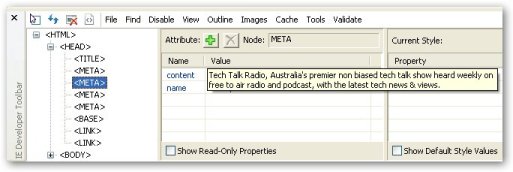
meta description tooltip
 
It is interesting to note that MS capitalize the tag names within the toolbar even though lowercase is the strict W3C definition.

A suggestion for MS with respect to visually distinguishing between the different meta tags is to include the name value within the navigation tree on the left hand side.  For example, instead of “<META>” you would see “<META name=’description’>”.

The other common SEO attribute is the title tag, but viewing the actual contents is confusing at first as nothing is shown when the title tag is viewed even though one is set.

To view the value of the title tag you need to use the innerText attribute of the tag, which is done by checking the “Show Read-Only Properties”.
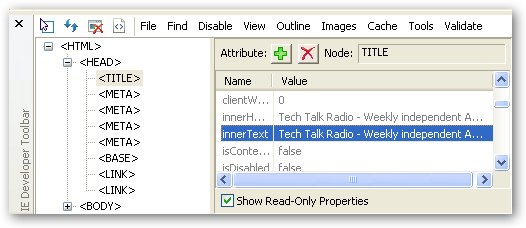
title tag innerTag
 
Another suggestion for MS would be for the innerText attribute to always be displayed.

Without going into too much detail, there are a lot of interesting things you can do with the toolbar:

1. Easily resize Internet Explorer to 800×600, 1024×768 etc to see what your page looks like for the resolutions you want to support.
2. Easy access to W3C validation tools and link checker, and accessibility reports.
3. Ability to turn off CSS – which is interesting for no other purpose that to see how awful a page looks.
4. Table and div tags etc can be outlined on the screen.
5. You can change the class of a tag and see its effect immediately before you edit the change within the actual page file.  All other read-write attributes can be changed also.
6. The toolbar can annotate the tag to image sizes, link paths, etc.  For example, viewing link paths replaces the original text of:
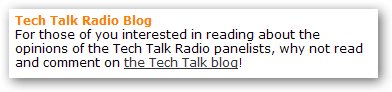
Original page contents

With the following:

Page contents with show links
 
7. And lots more

Download, install and give it a spin.

Displaying the toolbar is less than intuitive in my mind, which is done by selecting the >> to show additional items.
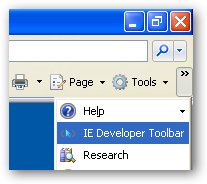
Show toolbar

Frustrated with taking pictures of the screen using the standard PrntScrn and Alt-PrntScrn keys?

Ever tried to take a picture of the Alt-Tab open applications box? Check this out:

Alt-Tab dialog

What about those applications which don’t have straight line borders?

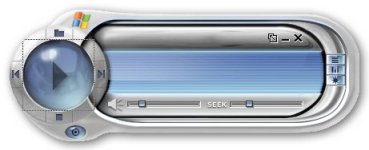
Any shape of application

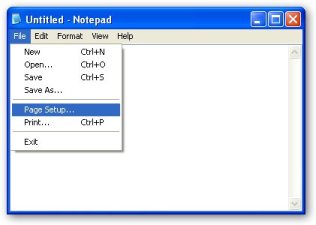
What about a picture of an application, and just the application, with the menus displayed? You can’t use Alt-PrntScrn as the Alt makes the menus disappear.

Notepad application with menu displayed

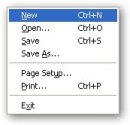
What about just the menu?

Notepad menu only

What about just some random region of the screen, without needing to use a picture editing application? The system tray:

System Tray

Or just the notification icons:

Notifications Icons

What about just a little piece of an application?

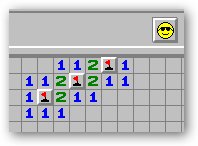
Minesweeper region

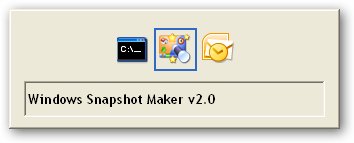
Well, all this is done by WinSnap, an application created by Alexander Avdonin, and you can check out information from his Web site at http://www.ntwind.com/.

And once you start using it, your documents and presentations will look more polished and you will think “how did I survive without it”.

Here is how each of the above was done:

• Alt-Tab open applications box – Region capture (Ctrl-Alt-PrintScreen) mode with 5 second delay to allow you to display the Alt-Tab open applications box and then select the top left and bottom right points of the region to be captured.
• Skinned application – Application capture (Ctrl-PrintScreen) mode.
• Notepad with menus – Application capture (Ctrl-PrintScreen) mode with 5 second delay to allow you to display the menu.
• Notepad menu – Menu capture (Win-Ctrl-PrintScreen) mode.
• System Tray – Object capture (Shift-Ctrl-PrintScreen) mode and select the system tray.
• Notification icons – Object capture (Shift-Ctrl-PrintScreen) mode and select the notification icons.
• Portion of Minesweeper – Region caption (Ctrl-Alt-PrintScreen) and select top left and bottom right points of the region to be captured.

Dilemma

A dilemma is when you must must make a choice between two options, and both have nasty consequences.

For instance, in Roald Dahl‘s James and the Giant Peach, James and the insects are inside a giant peach that is floating in the ocean.  Their dilemma is:
 
Do they eat the peach, and face death by drowning?

OR

Do they not eat the peach (keep it as a floating vessel), and face death by starvation?

Conundrum

A conundrum is a puzzling or difficult problem; almost everybody knows the most famous conundrum of all:

Which came first?  The chicken or the egg?
 
*Note:  ”dilemma” is often misspelt as “dilemna”

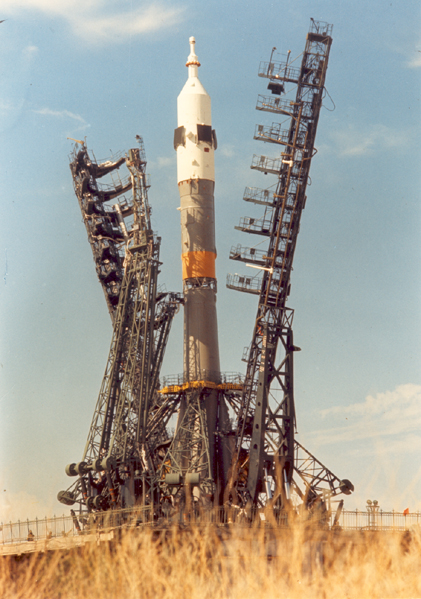
Launch of Soyuz TNA-9

Launch of Soyuz TMA-9, Source: NASA

I had the pleasure of meeting the world’s number one Matt earlier this week; Matt Mullenweg, of WordPress fame, and founder of Automattic, the company behind all great things–like Akismet–sat down with me at Pier 38 for a Tech Talk Radio story about the collaborative Web

During our chat, I learned much, but I thought this was just too great to wait!

Anousheh Ansari, the first female private space explorer, made history in September 2006 as the first person to blog from space

The Iranian born American businesswoman blasted off from the Baikonur Cosmodrome in Kazakhstan, as part of the Expedition 14 crew of the Soyuz TMA-9, to spend nine days on the International Space Station

Ansari, who returned with the Expedition 13 crew, makes history as the first person to blog from space, describing life in zero gravity and interacting with her supporters on planet Earth; her Website and blog received in excess of 50 million hits from readers around the world.

But…

Did you know? 

Ansari’s blog software of choice?  WordPress!

The full interview with Matt will go to air in the land down under on the 27th May, which, incidentally, is the 4th Birthday of WordPress, so don’t forget to send out your Congrats!

The podcast will be available the following day at Tech Talk.
 

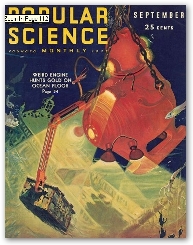
The Gold Digger Googlebot

Every time I look at this picture of The Gold Digger, from the April 2007 edition of Popular Science, I am reminded of the Googlebot sketch I saw on Philipp Lenssen’s Google Blogoscoped months ago…

Is it just me?

« Previous PageNext Page »